Wait... You Walked Away *Without* Pressing Win+L?! (Meet Win+Leave)

"Pizza's on me today, everyone! 🍕 Order whatever you like."
Posted in the team chat at 12:41. From Lisa's account.
At 12:41 Lisa was in a café, twelve steps from her laptop, discussing oat milk with a barista. Outlook open. The finance share open. A half-finished salary sheet open, because it's the end of the month. Screen unlocked. Right next to the window.
Three minutes. That's all it took.
And yes, you know 🪟 Win + L. Everybody knows 🪟 Win + L. It has been in every awareness training since the invention of the office chair. Nobody presses it every single time. Not because they're careless. Because they're human, and humans remember things right up until the moment they need to.
So I built something that presses it for them. It's called Win+Leave. 🚶🔒
The idea: your key is the lock 🔑
A lot of people already carry a YubiKey for MFA, on a lanyard or a keyring. When they walk away from the laptop, the key goes with them. That's the trigger.
Win+Leave watches that key. The moment it leaves the laptop, Windows locks.
- Key in → armed
- Key pulled → 🔒 locked, once
- Key back in → armed again
That's it. No agent to babysit, no cloud service, no subscription. A small PowerShell monitor that runs in the user's session and does one job.
Enough talk, here it is on my own desk. Key on a cord, magnet in the port, one tug. 🎬
Five seconds. Zero keys pressed. Nobody touched that keyboard.
Credit where it's due: BusKill 🙌
The idea isn't mine. BusKill has been doing this for years: a magnetic breakaway USB cable between you and your laptop, and the moment someone yanks the laptop away, it locks (or worse, if you ask it to). Brilliant idea, and the reason Win+Leave exists.
But put your MSP hat on for a second. 🎩 BusKill is another application on every laptop: one you didn't write yourself, with its own installer and its own update cycle, and not something you manage from the same console as the rest of the fleet. For one privacy-minded power user, perfect. For forty customers and a few thousand laptops, that's one more agent to trust, patch and explain.
So Win+Leave is the MSP variant of the same idea: a few hundred lines of PowerShell you can read over one coffee, deployed and configured from Intune like every other policy, and working with the YubiKey your users already carry for MFA. The accountant, the account manager, Lisa. Rolled out to a whole fleet.
Top idea, BusKill. Thanks for the head start. 🙌
Put it on your badge lanyard 🪪
Here's the trick that makes it stick: hang the YubiKey on the same lanyard as your building badge.
You never leave the office without that badge, because you need it to get back in. So the key comes with you, every coffee run, every meeting, every "back in five". No new habit required, you already have this one.
Want the full deadman experience? Put the key on a retractable badge reel and keep it plugged in while you work. Stand up and walk away, and the cord pulls the key out of the laptop for you. Locked, even on the day you're too busy to think about it. That's the BusKill trick, with a €3 badge reel instead of a special cable. 🧲
And for the nerds among us: add a magnetic USB-C adapter. The small half lives in the laptop port, the other half sits on the key. A tug on the lanyard and they snap apart cleanly: no bent key, no wobbly port, and the laptop stays on the table instead of following you to the coffee machine. That's the whole BusKill idea, built from a lanyard, a reel and a magnet. 🧲
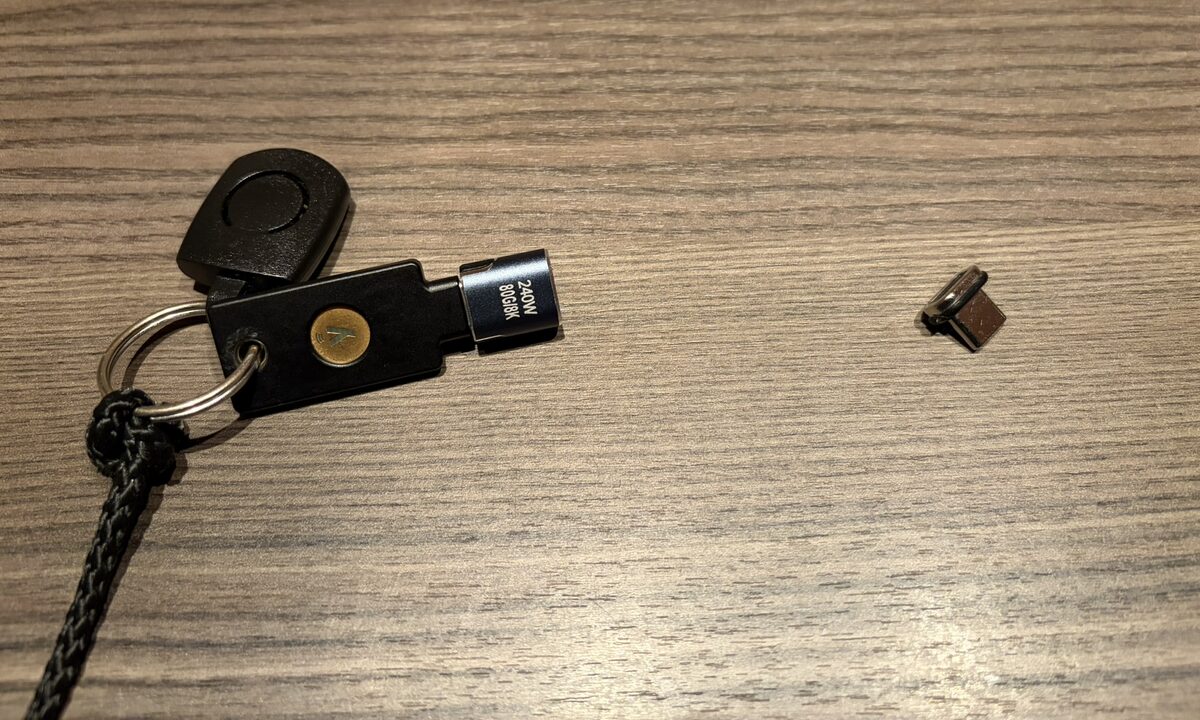
My daily driver: the key on a cord with the magnet on the key. The little stub on the right never leaves the laptop.
A couple of practical notes before you order a box of reels:
- USB-C keys on a reel pull out cleanly. A USB-A key in a tight port may need a firmer tug than a reel gives it, so test yours before you trust it.
- Keep the reel short. Long enough to type comfortably, short enough that standing up actually pulls.
- NFC keys (the ones you tap on your phone) work the same way, the NFC part just rides along.
- Magnetic adapters: check the data lines. Plenty of cheap ones are charge-only. The key needs a data connection (USB 2.0 is enough), so buy one that says it carries data, and check that Windows sees the key through it before you roll anything out.
"But doesn't Windows already do this?" 🤔
Sort of. Two built-in cousins, and both have a catch:
- Smart card removal behaviour. Interactive logon: Smart card removal behavior = Lock Workstation does exactly this, natively. But only when users sign in with the YubiKey as a PIV smart card. Most tenants use it for FIDO2, passkeys or Windows Hello. Then the policy does nothing.
- Dynamic Lock. Locks when your paired Bluetooth phone walks away. Lovely in theory. In practice it waits around 30 seconds after the phone is out of range, and phones have a habit of staying on the table while their owner goes for coffee. 📱
So: the feature exists, just not for the way people actually work in 2026. That's the gap Win+Leave fills.
The golden rule 🥇
Here's where it gets interesting for MSPs. A tool is nice. A rule is better.
Working outside the office? Your key is on your lanyard, not in the laptop. Get up, take your key, and your workplace is locked.
That's a rule people can actually follow, because it piggybacks on something they already do: taking their stuff with them. You don't ask them to remember a shortcut. You ask them to not leave their key behind. Which they weren't planning to do anyway.
And because Win+Leave is deployed from Intune to every device and every user, it stops being a hope and becomes the house rule. Same behaviour on every laptop. Nothing to configure per person: the default setting trusts any YubiKey, so it just works for whoever signs in.
A bad day, handled 🌧️
The first thing I tested wasn't the happy path. It was the day where everything goes wrong:
- 08:00 Sign in, key in. Armed, and a notification says so.
- 12:30 Pull the key, walk to lunch. 🔒 Locked.
- 13:15 Back. The key is broken. Unlock with your PIN.
What happens next matters more than anything else in this tool. If it locks again, you've built a machine that locks people out of their own laptop, and it gets uninstalled by Friday.
It doesn't. A lock disarms the switch. It only re-arms when a working key is back in, so you can finish your day without one. A new logon always starts disarmed. A broken key that blinks in and out never stays in long enough to arm. And if a faulty key keeps coming back by itself right after a lock, the switch takes a 15-minute break and puts a notification on screen, so nobody sits there wondering why it stopped. You testing it ten times in a row? That never pauses it: no human unlocks and plugs a key back in within ten seconds. Every one of those scenarios is a test in the repo.
Rolling it out with Intune ☁️
It's packaged as a normal Win32 app:
| Install | powershell.exe -NoProfile -ExecutionPolicy Bypass -File .\Install.ps1 -NoStart |
| Uninstall | powershell.exe -NoProfile -ExecutionPolicy Bypass -File .\Uninstall.ps1 |
| Install behaviour | System |
| Detection | intune/Detect.ps1 from the repo |
| Assignment | All devices |
Under the hood it registers a scheduled task that starts at every logon in the user's own session (locking only works from inside the session you want to lock, which is why this is not a SYSTEM service). The config lives in ProgramData and only admins can change it, so "I'll just turn it off" isn't an option for users.
Want to pin it to specific keys instead of any YubiKey? Enroll.ps1 does that per device, and you can ship your own config in the package.
What it is not 🛑
Let's keep it honest:
- It's a walk-away control, not an anti-tamper control. Someone already sitting at an unlocked keyboard can end the process. Its job is the moment you walk away.
- A lock is only as strong as the unlock. Pair it with Windows Hello or a proper PIN, and with the ⚙️🪟💻CP - Security - Screen Lock Timer as the safety net for the times the key stays in.
- Windows only. PowerShell 5.1 is all it needs, which every Windows device already has.
Get it 🎁
It's free, open source (MIT) and on GitHub: github.com/vdBurgIT/win-plus-leave
And hey, if it saves you from even one pizza message: don't forget to smash that ⭐ button, hit the bell and tell your friends in the comments below. (That's how the influencers do it, right? I'm new here. 😅)
Just want it on your own laptop? Not an MSP, no Intune, no problem. Open PowerShell and paste one line:
irm https://raw.githubusercontent.com/vdBurgIT/win-plus-leave/main/get.ps1 | iex
One Windows prompt for administrator rights, and it's running. Any YubiKey works out of the box. (Yes, you should read a script before piping it into PowerShell. It's short. Go on. 👀)
Rolling it out to customers? Try it on one laptop first with "Action": "None" in the config, watch the log arm and fire, and then roll it out with Intune. Issues, ideas and pull requests are very welcome.
🪟 Win + L is still a great shortcut. Win+Leave is for every time you forget it.
The floor is still waiting for that pizza, by the way. 🍕